
My emails are going to spam: what to check
Check your domain has DKIM, SPF and DMARC, your sender uses that domain, and bounce and complaint rates are low. Then review your list and content.
On this page
- 1. Check your sending health
- 2. Confirm your domain is authenticated
- 3. Send from an address on that domain
- 4. Look at a real email’s headers
- 5. Keep bounces and complaints low
- 6. Make it easy to unsubscribe
- 7. Do not overwhelm people
- 8. Check the content
- 9. New domain? Start slowly
- Still landing in spam?
- Related articles
Most spam-folder problems come from three things: the sending domain is not fully authenticated (DKIM, SPF and DMARC), the From address is on a different domain, or your bounce and complaint rates are high. Work through the checks below in order, starting with your sending health score.
1. Check your sending health
- Open Email setup (or your Dashboard) and look at the Sending health card.
- Fix anything marked Fix now or Fix soon first. Each problem has a button that opens the fix.
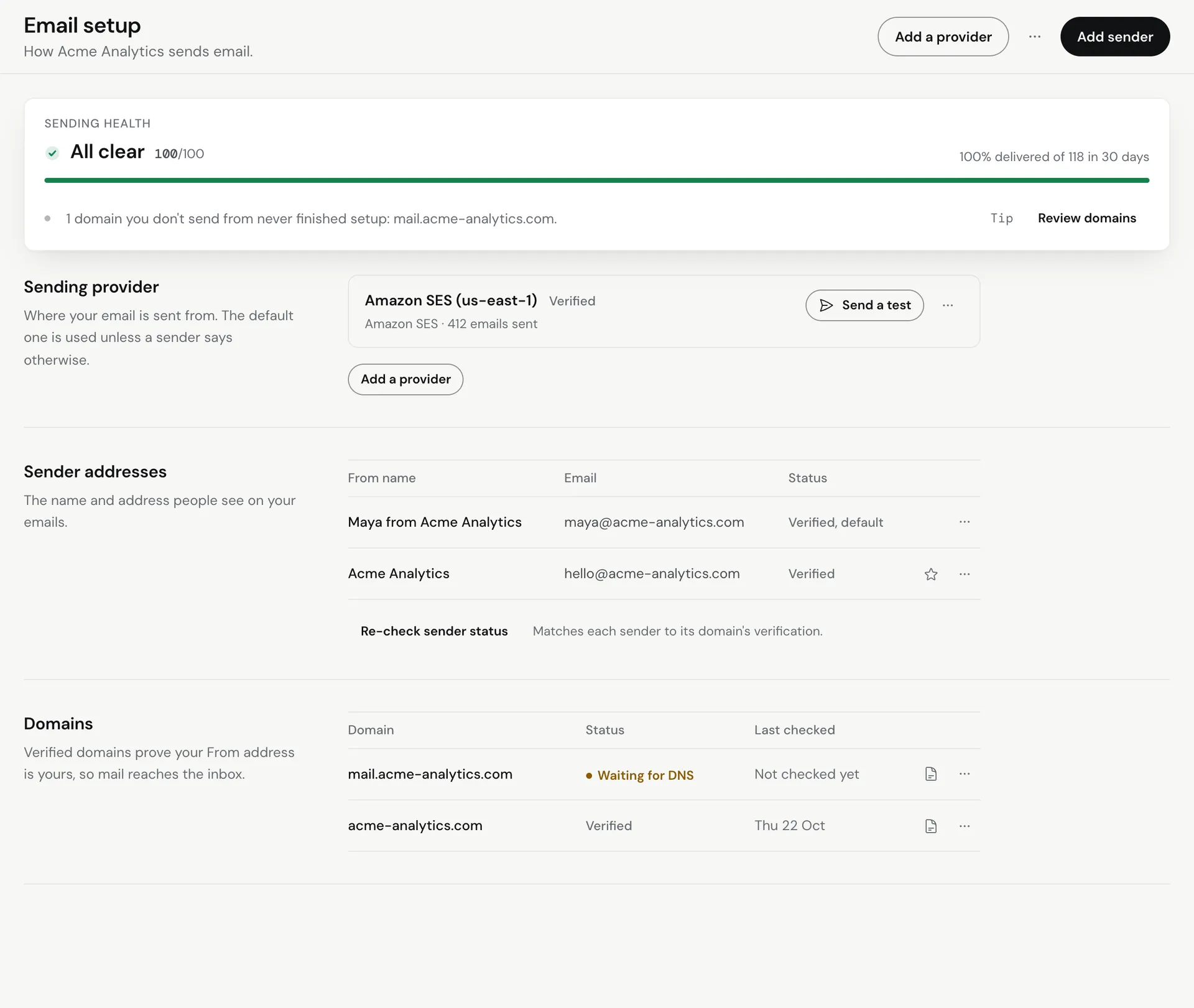 A failed or pending domain, or a bounce rate above 2%, is often the whole story. See Understand your sending health score.
2. Confirm your domain is authenticated
- In Email setup, find your domain and click View records.
- Every row should show Found, and the domain status should be Verified.
- If any row shows Not found yet, add it at your DNS host. See Add Meisa’s DNS records at Cloudflare, GoDaddy, Namecheap or Route 53.
Gmail, Yahoo and Outlook expect DKIM, SPF and a DMARC record from anyone sending in volume. Without them, mail often lands in spam or is rejected. If you already have an SPF record, merge Meisa’s include:amazonses.com into it. A domain may only have one SPF record.
3. Send from an address on that domain
Your sender’s From address must be on the domain you verified. Sending as [email protected] or from a domain you did not verify fails authentication. Check this under Email setup, in your senders. See Add a sender (From name and address).
4. Look at a real email’s headers
- Send a test email to a Gmail address you own.
- In Gmail, open the email, click the three dots and choose Show original.
- Check that SPF, DKIM and DMARC all say PASS.
If DKIM fails, your DKIM records are missing or wrong. If DMARC fails while SPF and DKIM pass, the From domain does not match the domain you verified.
5. Keep bounces and complaints low
- Keep your bounce rate under 2% and spam complaints under 0.1%. Mailbox providers start filtering above that.
- Only send to people who signed up. Do not import old or bought lists.
- Meisa already removes hard bounces, spam complaints and invalid addresses for you, and checks every address before it sends. See Handle bounces and spam complaints.
6. Make it easy to unsubscribe
Meisa adds a one-click unsubscribe header to every marketing-style email, and a visible unsubscribe link at the bottom if your template does not already have one. Do not hide or remove it. A person who cannot find the unsubscribe link clicks Report spam instead, which hurts you far more.
7. Do not overwhelm people
- Keep the frequency cap on, so nobody gets a burst of emails in one day.
- For a big broadcast to a cold list, use phased (warm) sending so the most engaged people get it first. See Schedule a broadcast and use phased (warm) sending.
8. Check the content
- Write like a person, not an ad. Avoid all-caps subjects and piles of exclamation marks.
- Keep a healthy balance of text and images. An email that is a single image often lands in spam.
- Link only to domains you trust. One link to a blocklisted site can sink the whole email.
9. New domain? Start slowly
A brand-new domain or a new AWS SES account has no reputation yet. Start with your most engaged contacts and raise volume over a few weeks. Make sure your SES account has production access first. See Move AWS SES out of the sandbox.
Still landing in spam?
Write to [email protected] with the domain, the provider you send through and a copy of the email’s headers (from Show original). We will look at it with you.
Related articles
Did this answer your question?
Thanks for letting us know.Thanks, we will improve this article. Want a hand right now?
Still need help?
Chat with us and get an answer in a few minutes.