
Send a test email to yourself or your team
Click Send a test in a broadcast or template to get the email in a real inbox first. Save test addresses once in Settings and reuse them in one click.
On this page
Click Send a test in a broadcast or in the template editor to get the email in a real inbox before anyone else does. Pick a saved test address or type one, then click Send test. The subject starts with “[TEST]” so you can spot it.
Send a test
- Open the broadcast (from Broadcasts) or the template (from Templates).
- Click Send a test.
- Under Saved test addresses, tick the addresses that should get it, or type a new one in Add an address (optional). A new address is saved for next time.
- Click Send test. If you have unsaved edits, click Save and send test instead.
- Check your inbox. Use Send again after you make changes.
Tests use your last saved version, so save first if you just edited something.
What the test shows
- The subject is prefixed with “[TEST]”. In a two-template test the prefix says which version it is, for example “[TEST Variant A]”.
- From a broadcast: if the test address is one of your contacts, their real name and fields fill the merge tags, so you see exactly what they would get.
- From the template editor: a sample person is filled in, so merge tags like
{{first_name}}show real-looking values.
Save test addresses for your team
Save the addresses you and your team test with once, and they show up in every Send a test dialog, for every product.
- Go to Settings, then Test recipients.
- Enter the Email and an optional Name (optional).
- Click Add.
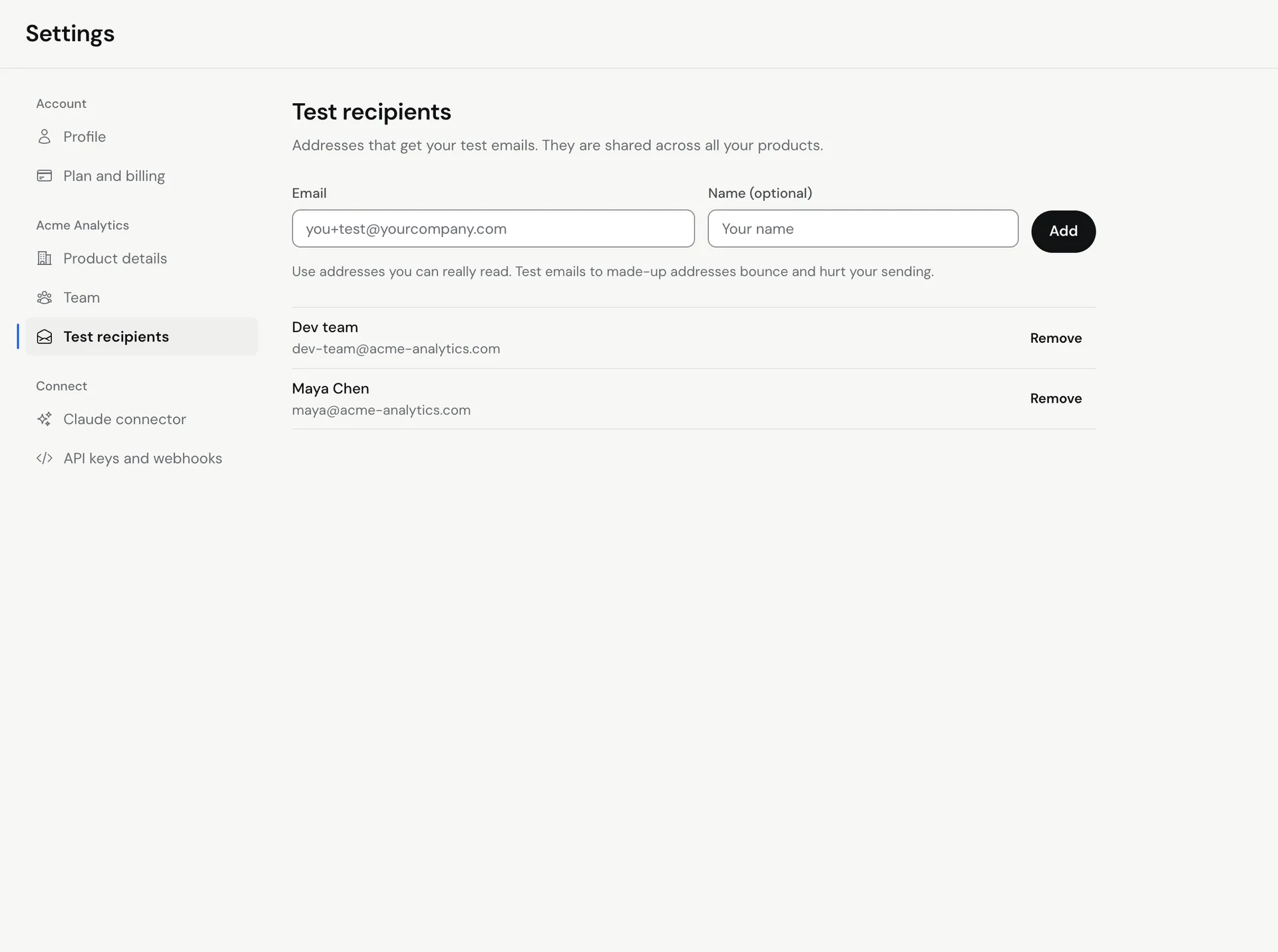 To remove one, click the remove button on its row. If you saved test addresses in an older version of Meisa, you may see “Addresses found in this browser”. Click Import them to move them to your account so every device can use them.
Use addresses you can really read. Test emails to made-up addresses bounce and hurt your sender reputation. A good pattern is a plus address on your own inbox, like [email protected].
Troubleshooting
- The test did not arrive: check spam and promotions folders, then confirm your sender is verified. See Why was my email not sent?.
- The test shows old content: tests use your last saved version. Click Save and send test.
- Merge tags show the fallback: the test address is not a contact, or the contact has no value for that field. Add a fallback like
{{first_name|there}}. - “Enter a full email address, like [email protected].” The address is incomplete.
Related articles
Did this answer your question?
Thanks for letting us know.Thanks, we will improve this article. Want a hand right now?
Still need help?
Chat with us and get an answer in a few minutes.