
Send your first broadcast
A broadcast is a one-time email to many contacts. Choose who gets it, write it, pick when it goes, then click Review and send.
On this page
A broadcast is a one-time email to many contacts, such as a product update or a launch announcement. Go to Broadcasts, click New broadcast, then fill in three sections from top to bottom: Who gets it, What they get and When it goes.
Before you start, make sure your sending domain is verified and you have a sender address. See Verify your sending domain and Add a sender address.
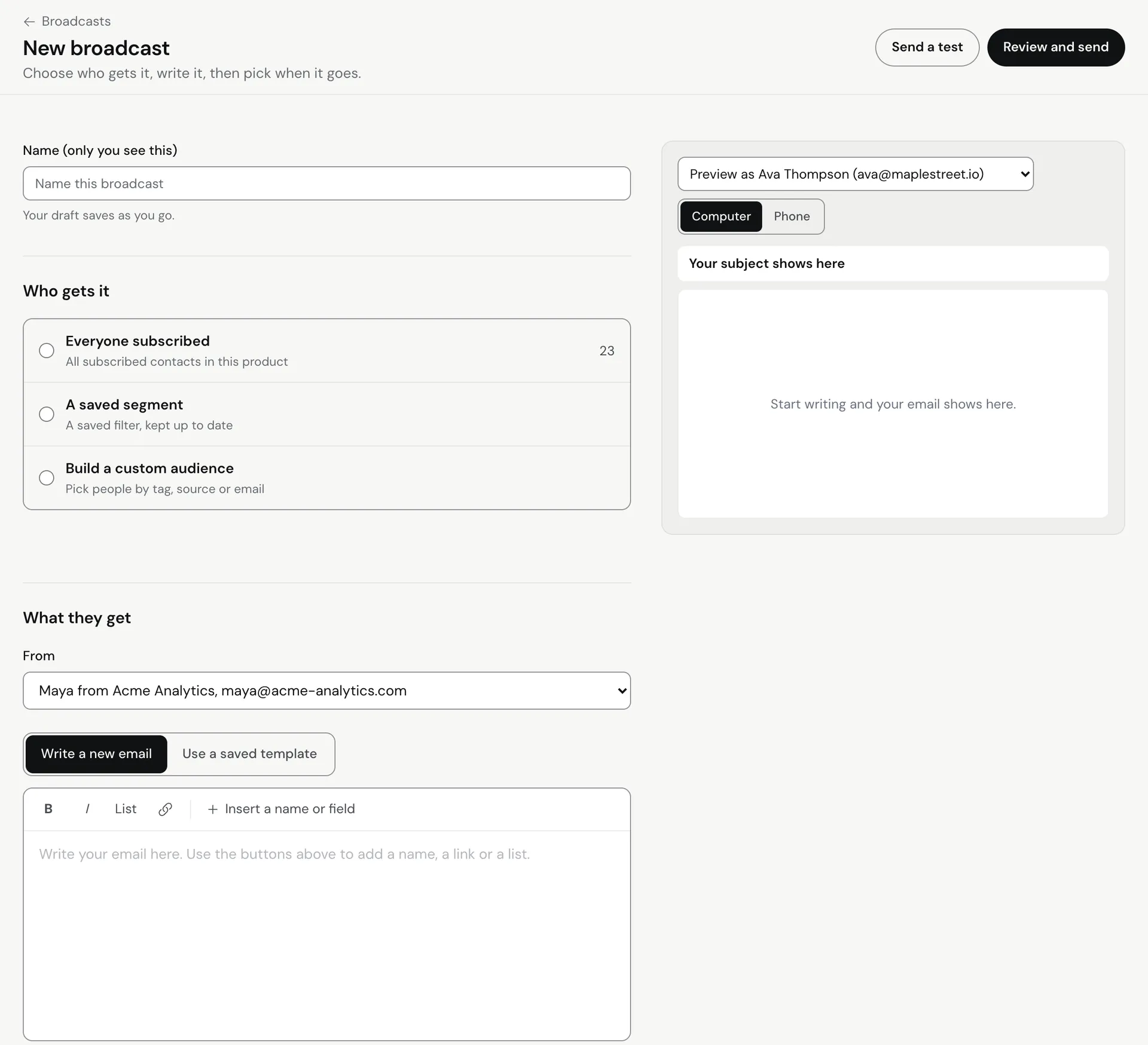
Create the broadcast
- Go to Broadcasts and click New broadcast.
- Give it a Name (only you see this), for example “October product update”. Your draft saves as you go.
1. Who gets it
Choose one:
- Everyone subscribed: all subscribed contacts in this product.
- A saved segment: pick a segment from Segment. See Create a segment.
- Build a custom audience: pick people by tag, source or email for this send only.
Meisa shows how many people match. Unsubscribed, bounced and spam-complaint contacts are always left out.
2. What they get
- Pick the From address. If it is missing, click Add a sender.
- Choose Write a new email to write it here, or Use a saved template and click Choose a template. See Build an email template.
- Write the Subject and, optionally, the Preview text (optional): the grey line people see next to the subject in their inbox.
- Pick the Email type, for example Product updates or Offers and promotions. Contacts who switched that type off in their preferences will not get this email. Their other types keep sending.
- Write your message. Use
{{first_name|there}}to greet people by name, with “there” as the fallback.
Optional: under Test two versions, compare Two subject lines or Two templates. Set the Test group (% of people), pick whether The winner is the one with more Opens or Clicks, and set Wait (hours). The winning version then goes to everyone else.
3. When it goes
- Choose Right away, or At a set time to schedule it. See Schedule a broadcast.
- Under How fast, choose All at once or In waves, most engaged first. Waves protect your sender reputation on larger lists.
- Under Tracking, leave Track opens and Track link clicks on unless you have a reason to turn them off.
Test and send
- Click Send a test and check the email in your own inbox. See Send a test email.
- Read the inbox check near the send button: Inbox-ready, Borderline or Spam risk, with tips to fix any problems.
- Click Review and send.
- Check the summary (email, subject, from, number of people, when) and click Send to N people.
You can leave the page while it sends. Results show on the broadcast’s page as they come in. See Read your results.
Troubleshooting
- “Choose a sender before you send.” Pick a From address.
- “The sender isn’t verified yet.” Finish verifying the domain in Email setup.
- “This email has no content yet.” Write the email or choose a template.
- “N variations still need your OK before this goes out.” Click Read them and approve them. See Write and approve email variations.
- “No one is in this audience, so there is nothing to send.” Change Who gets it.
- Fewer people got it than expected: contacts who turned off this email type, or who were stopped by the frequency cap, are skipped. See How the frequency cap protects your contacts.
Related articles
Did this answer your question?
Thanks for letting us know.Thanks, we will improve this article. Want a hand right now?
Still need help?
Chat with us and get an answer in a few minutes.