
Build an email template
Templates are reusable email designs for broadcasts, sequences and transactional emails. Start from a ready design or a blank email, edit visually, then save.
On this page
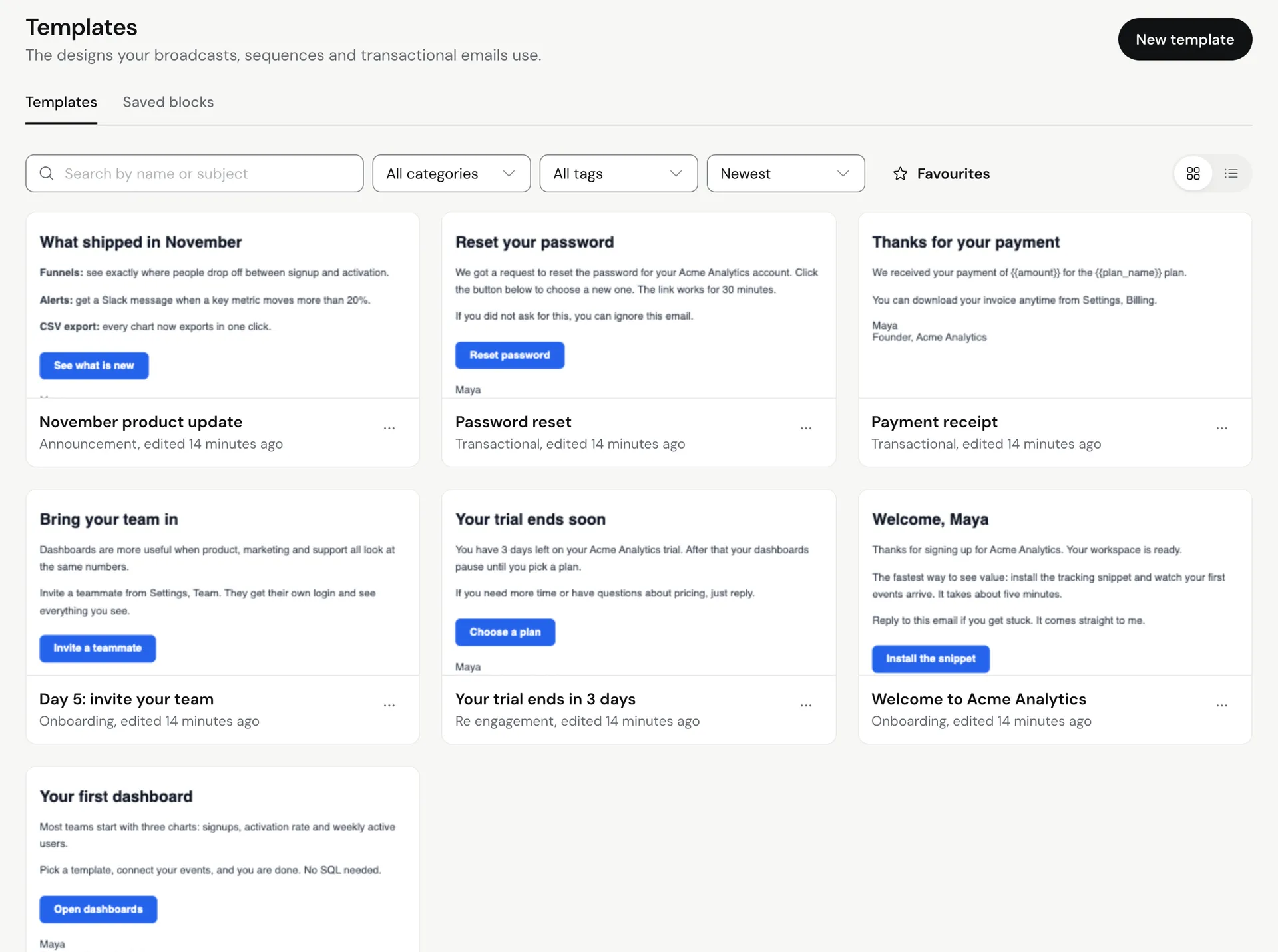
A template is a reusable email design you can use in broadcasts, sequences and transactional emails. Go to Templates, click New template, start from a ready-made design or a blank email, then edit it in the visual editor and save.
Create a template
- Go to Templates and click New template.
- In Start With What Works, browse by category (Onboarding, Engagement, Win-Back, Sales & Offers, Receipts & Alerts, Newsletter) or search, and pick a design. To start from nothing, click Blank Email.
- Click the title at the top and give the template a name.
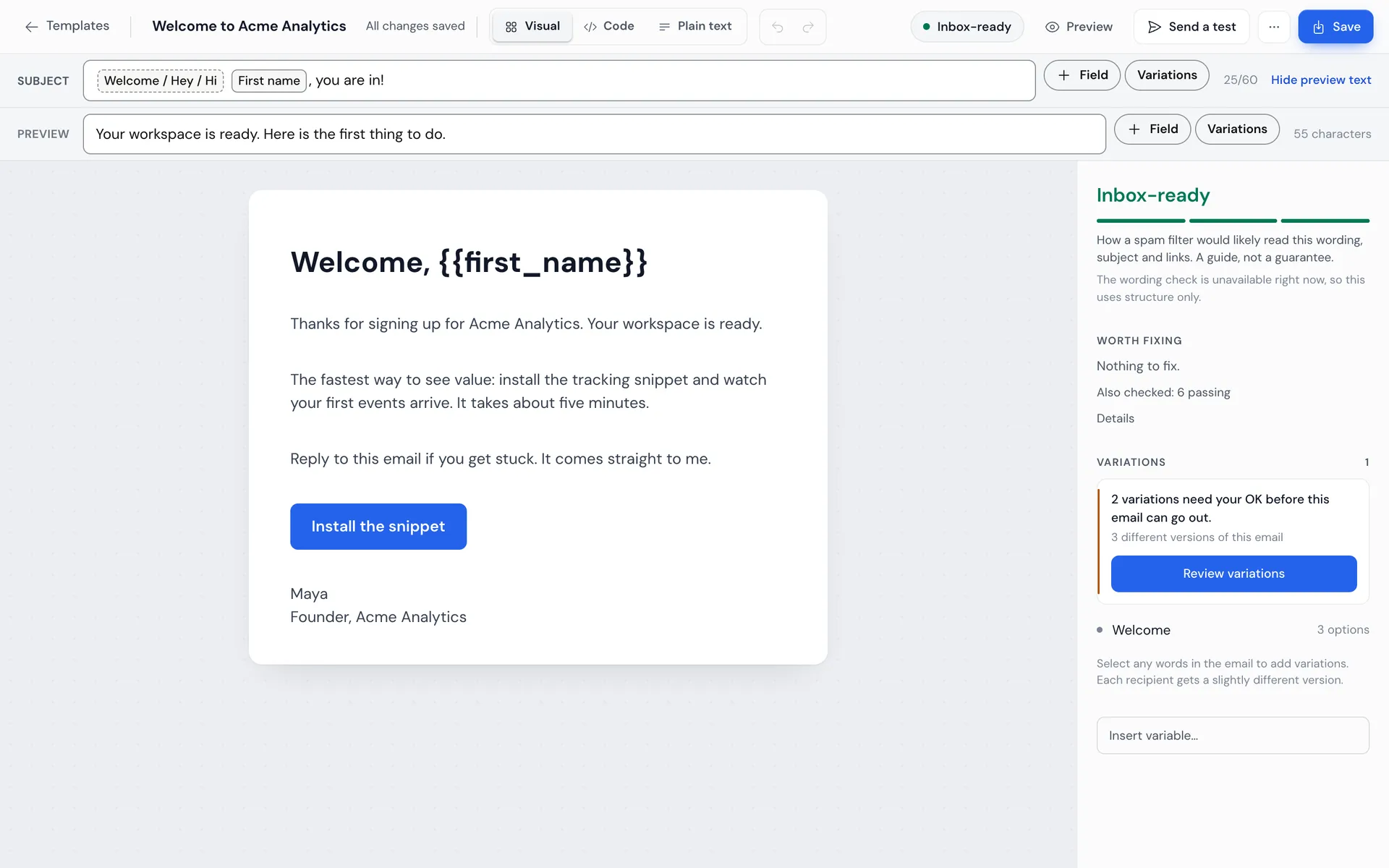
- Fill in the Subject and the Preview text, the grey line shown next to the subject in the inbox.
- Edit the content (see below).
- Click Save, or press Ctrl+S (Cmd+S on a Mac). The status changes from “Unsaved changes” to “All changes saved”.
Edit the content
Use Edit as at the top to pick how you work:
- Visual: drag and drop blocks. Click Add a block (or the plus between blocks) to add Text, Heading, Image, Button, Divider, Spacer, List, Quote, Callout Box, Product Card, Video, Social Links, Footer and more. Click a block to change its text, colours and spacing. Use the block toolbar to move, duplicate or delete it.
- Code: edit the HTML directly, for example to paste a design from another tool.
- Plain text: write a text-only email.
Use Undo and Redo at the top if you make a mistake.
Personalise it
Type merge tags anywhere in the subject or content:
{{first_name}}inserts the contact’s first name.{{first_name|there}}uses “there” when the first name is empty, so “Hi {{first_name|there}}” never reads “Hi ,”.- Custom fields work the same way, for example
{{plan}}.
See Use custom fields and tags.
Reuse blocks across templates
Built a footer or signature you want everywhere? Select the block and click Save as a saved block. It then shows under Your saved blocks when you add a block to any template. Manage them from Templates, Saved blocks.
Check it before you use it
- Click Preview to see it on desktop and phone.
- Click Send a test to get it in your inbox with a sample person filled in. See Send a test email.
- Open Inbox check to see how it reads to spam filters and to add or review variations. See Write and approve email variations.
Use the template
- In a broadcast: in What they get, choose Use a saved template, then Choose a template. If you opened the editor from a broadcast, click Use in broadcast to go back with it selected.
- In a sequence or transactional email: pick it in the email step or trigger.
Manage templates
On the Templates page you can search, filter by category or tag, sort, and switch between grid and list view. Open More actions in the editor for Details (category, tags), Duplicate template and Delete template.
Troubleshooting
- “Give the template a name first. Click the title at the top.” Name it, then save.
- “Add a subject line first.” Fill in the Subject.
- “Add some content to the email first.” Add at least one block or some text.
- “Remove 1 link or button?” You deleted the words on a link or button. Click Save and remove to confirm, or undo.
- A test shows the old version: tests use your last saved version. Save first.
Related articles
Did this answer your question?
Thanks for letting us know.Thanks, we will improve this article. Want a hand right now?
Still need help?
Chat with us and get an answer in a few minutes.