
Handle bounces and spam complaints
Meisa stops mailing hard bounces, dead mailboxes and people who report spam automatically. Your job is to keep delivery tracking on and watch your rates.
On this page
Meisa handles bounces and spam complaints for you: a hard bounce or a spam report stops all future email to that address straight away, and temporary bounces pause email for a day and stop it after repeated failures. Your part is to make sure delivery tracking is on, so Meisa hears about bounces, and to keep your rates low.
Make sure Meisa hears about bounces
Bounces and complaints come back from your provider. If tracking is not set up, Meisa never learns about them.
- Open Email setup.
- Next to your provider, open the More actions menu (the three dots).
- Choose Set up delivery tracking and confirm.
For Amazon SES, Meisa creates a configuration set and a notification topic in your AWS account, so your access key needs permission to do that. See Set up open and click tracking.
What Meisa does with each bounce
Hard bounce (the address does not exist):
- The email is marked Bounced.
- The contact is unsubscribed right away, and the reason is saved on their timeline.
- The address goes on Meisa’s suppression list, so none of your products, transactional email included, sends to it again.
Temporary (soft) bounce (mailbox full, server busy):
- Marketing-style email to that person pauses for 24 hours. Sequence emails wait and go out after the pause.
- After 3 soft bounces within 30 days, the contact is unsubscribed and the address is suppressed.
Soft bounces that will not recover:
- A mailbox the provider reports as disabled or inactive is suppressed for 90 days, then allowed again in case it comes back.
- A company mail server that rejects your email by policy stops that contact on the first bounce.
Address with no mail server: Meisa checks each address before sending. If the domain cannot receive mail, the email is not sent, the contact is unsubscribed, and the address is suppressed.
What Meisa does with a spam complaint
When someone clicks Report spam:
- The email is marked as complained and the contact’s status changes to Marked as spam.
- All their email preferences are switched off.
- The address is blocked in every product on your account, transactional email included.
This is final. Do not re-add or re-subscribe someone who reported you.
See who bounced or complained
- For a broadcast: open the broadcast and scroll to Didn’t arrive. You see Bounced, the address doesn’t exist, Couldn’t be sent and Marked as spam after it arrived, with the people behind each.
- For one person: open the contact. Their Emails tab shows each email’s status.
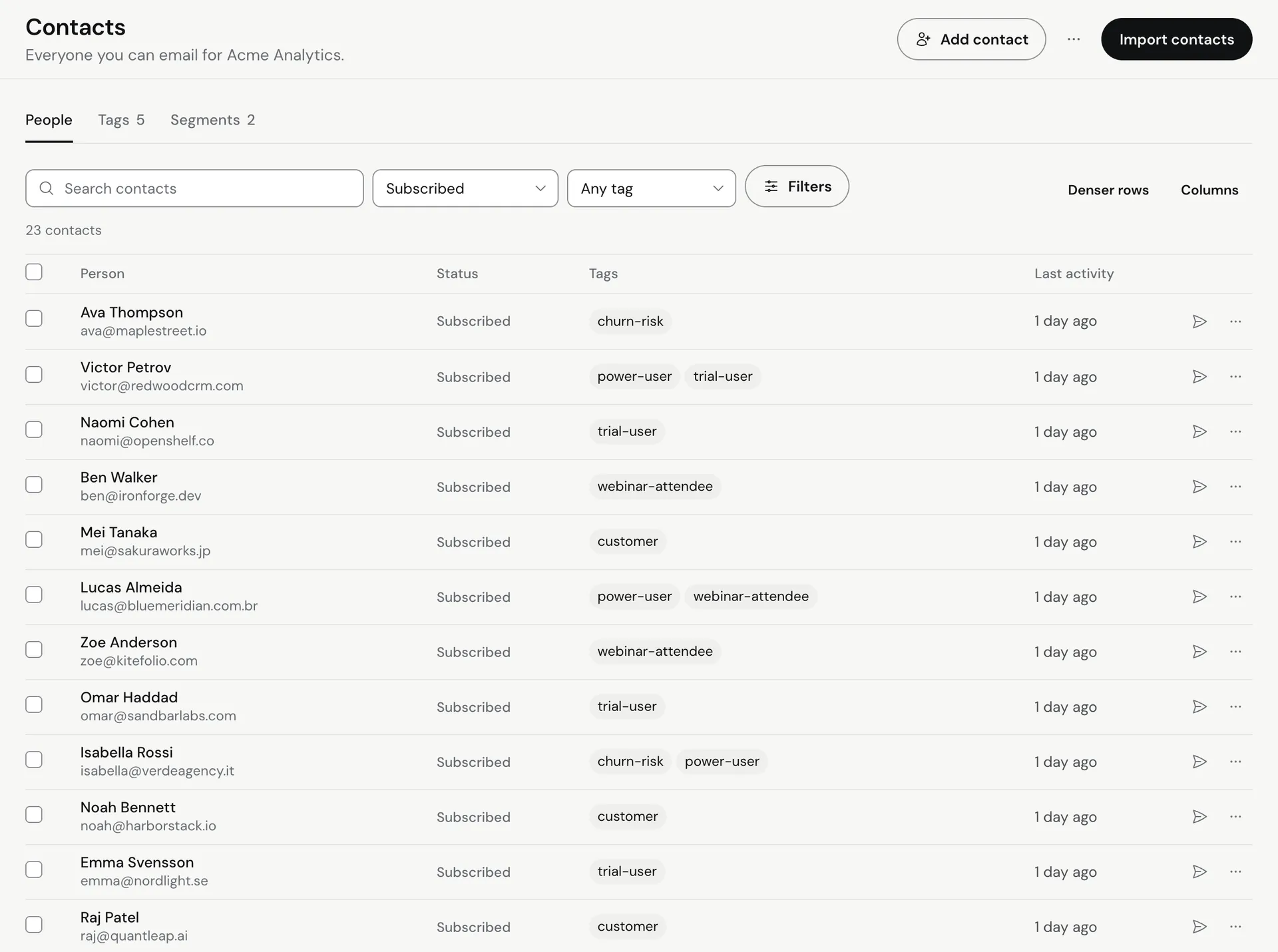
- Across your list: on Contacts, use the status filter to show Unsubscribed, Bounced, Marked as spam or Not subscribed (all). Contacts stopped by a hard bounce are listed as Unsubscribed, with the bounce as the reason on their timeline.
Keep your rates healthy
Your sending health score watches the last 30 days:
- Bounce rate: keep it under 2%. Above 5% costs 40 points and shows Fix now.
- Spam complaints: keep them under 0.1%. At 0.3% or more, Gmail starts filtering and your score shows Fix now.
To bring them down:
- Only send to people who signed up recently and expect your email.
- Before importing an old list, remove addresses that have not engaged in a long time.
- Make your unsubscribe link easy to find. People who cannot unsubscribe report spam instead.
- Keep the frequency cap on.
A real address was suppressed by mistake
Re-subscribing the contact is not enough, because the address itself is on the suppression list. Email [email protected] with the address and why you believe it now works. We will check it and lift the block if it is safe to send again.
Related articles
Did this answer your question?
Thanks for letting us know.Thanks, we will improve this article. Want a hand right now?
Still need help?
Chat with us and get an answer in a few minutes.