
Create an onboarding email sequence
Go to Sequences, click New sequence, pick a blueprint or start blank, add emails and waits, choose a sender, then click Turn on.
On this page
A sequence is a series of emails that goes out over days, one person at a time, starting when they join. To build one, open Sequences, click New sequence, add your email and wait steps, choose a sender in Settings, and click Turn on.
Before you start
- Connect your email provider and verify your domain. See Connect Amazon SES to Meisa.
- Add at least one sender. See Add a sender (From name and address).
- Have the emails ready as templates, or create them as you go. See Build an email template.
Create the sequence
- In the sidebar, under Emails, click Sequences.
- Click New sequence.
- Pick a starting point:
- Start from a blueprint: onboarding, win-back, trial-to-paid and more. Each one is a set of emails and waits you can edit.
- Start blank: an empty sequence with one email and a one-day wait.
- Ask Claude to build it: describe the goal in Claude and Meisa creates the sequence for you. This needs the Claude connector.
- At the top of the builder, click the name field (Name this sequence) and give it a clear name, for example “Trial onboarding”.
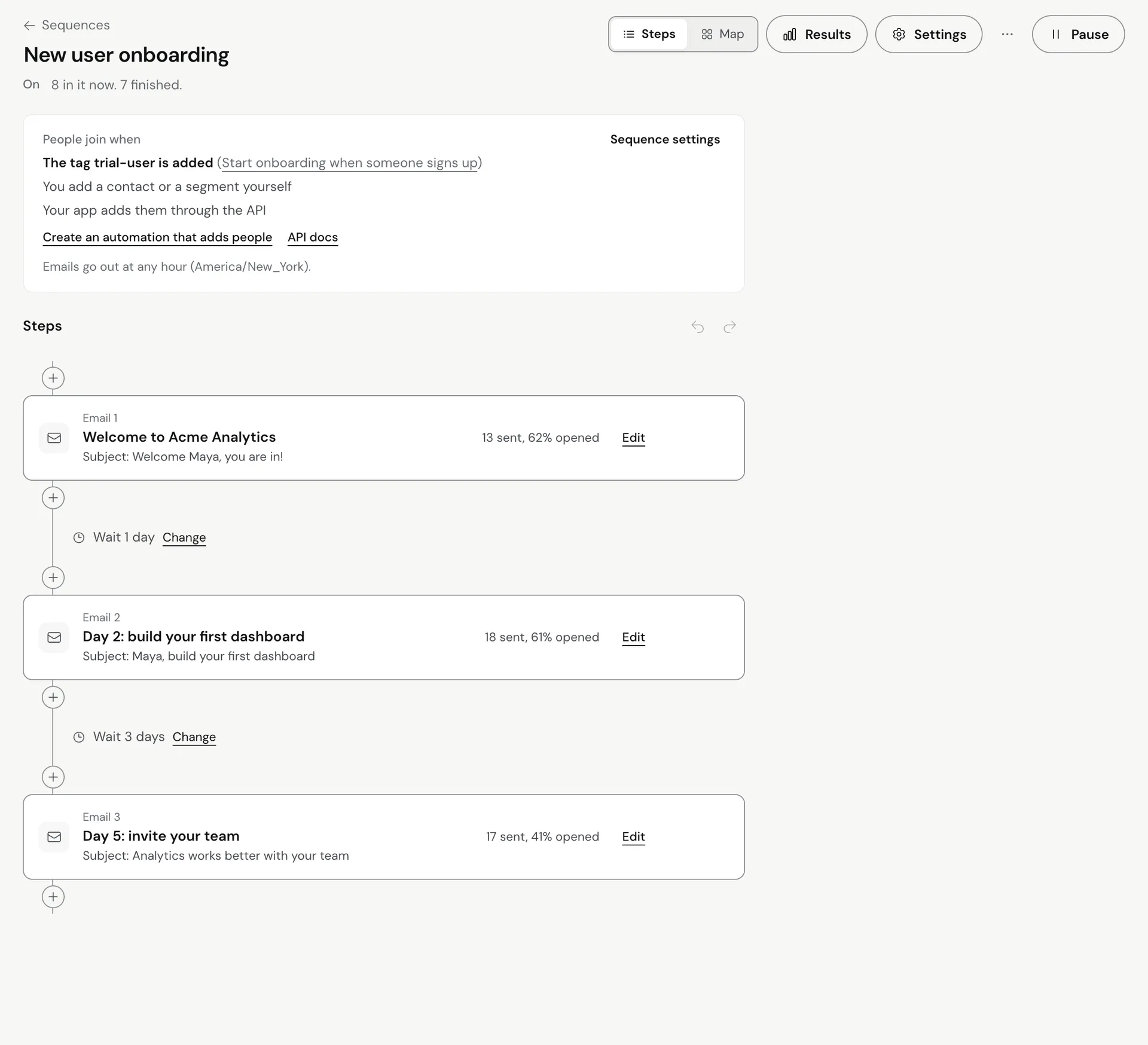 A new sequence is a draft. While it is a draft, Meisa saves your edits automatically (you see Saving soon… and then Saved).
Add your steps
- Click Add the first step (or the plus between two steps) and choose a step type:
- Email: pick a template and send it.
- Wait: pause for minutes, hours, days or weeks.
- Check a condition: do different things based on what the person did.
- Action: add a tag, set a field, or call a web address.
- For an Email step, pick the template under Template. The subject comes from the template, so edit the template to change it.
- For a Wait step, enter a number in Wait for and pick the Unit.
- Repeat until the flow is complete. A typical onboarding sequence is: welcome email, wait 1 day, setup tip, wait 2 days, check if they did the key action, then a nudge or a “what’s next” email.
To test a single email, select the step and use Send a test of this email. For waits and branches, see Add delays, conditions and branches to a sequence.
Choose the sender and sending rules
- Click Settings in the builder header to open Sequence settings.
- Under Send from, choose a sender. Every email in this sequence goes out from it.
- Optional settings:
- Email type: whether these are marketing or transactional emails.
- Time zone and Sending hours: limit sends to a window. Leave both empty to send at any hour.
- Most emails per person per day: leave empty for no limit.
- Spread sends by up to (minutes): adds a small random delay so emails don’t all leave at the same second.
- Tracking: open and click tracking for this sequence. Keep it on if you plan to branch on opens or clicks.
Turn it on
- Click Turn on in the builder header.
- If Meisa can’t turn it on yet, it tells you why under the header (for example, an email step has no template, or no sender is chosen). Click Go to that step to fix it.
- Once it is on, people who join get the emails. Next, decide how people join: see Enroll contacts in a sequence.
Edit a sequence that is already on
Edits to a live sequence don’t reach people until you publish them. Make your changes, then click Publish changes in the bar at the bottom. People already in the sequence continue from where they are. To throw away your edits, use Discard changes.
To stop sending, click Pause. Nobody gets the next email until you turn it back on.
Check results
Click Results in the builder header to see how many people joined, finished or left early, and the sends, opens and clicks for each step.
Troubleshooting
- Turn on is not available: choose a sender in Settings, and make sure every email step has a template.
- Nobody is getting emails: a sequence only sends to people who joined it. Add an automation, add people by hand, or enroll them through the API.
- Emails go out at odd hours: set Time zone and Sending hours in Sequence settings.
Related articles
Did this answer your question?
Thanks for letting us know.Thanks, we will improve this article. Want a hand right now?
Still need help?
Chat with us and get an answer in a few minutes.