
Create an automation rule
Go to Automations, click New automation, choose what starts it under When, add optional conditions under Only if, pick actions under Then, and click Turn on.
On this page
An automation is a rule: when something happens to a contact, Meisa does something, like adding a tag or starting a sequence. Go to Automations, click New automation, set When, Only if and Then, and click Turn on.
Create the automation
- In the sidebar, under Emails, click Automations.
- Click New automation. If you have none yet, you can also start from one of the suggested starters.
- Give it a name in Name, for example “Start onboarding for new signups”.
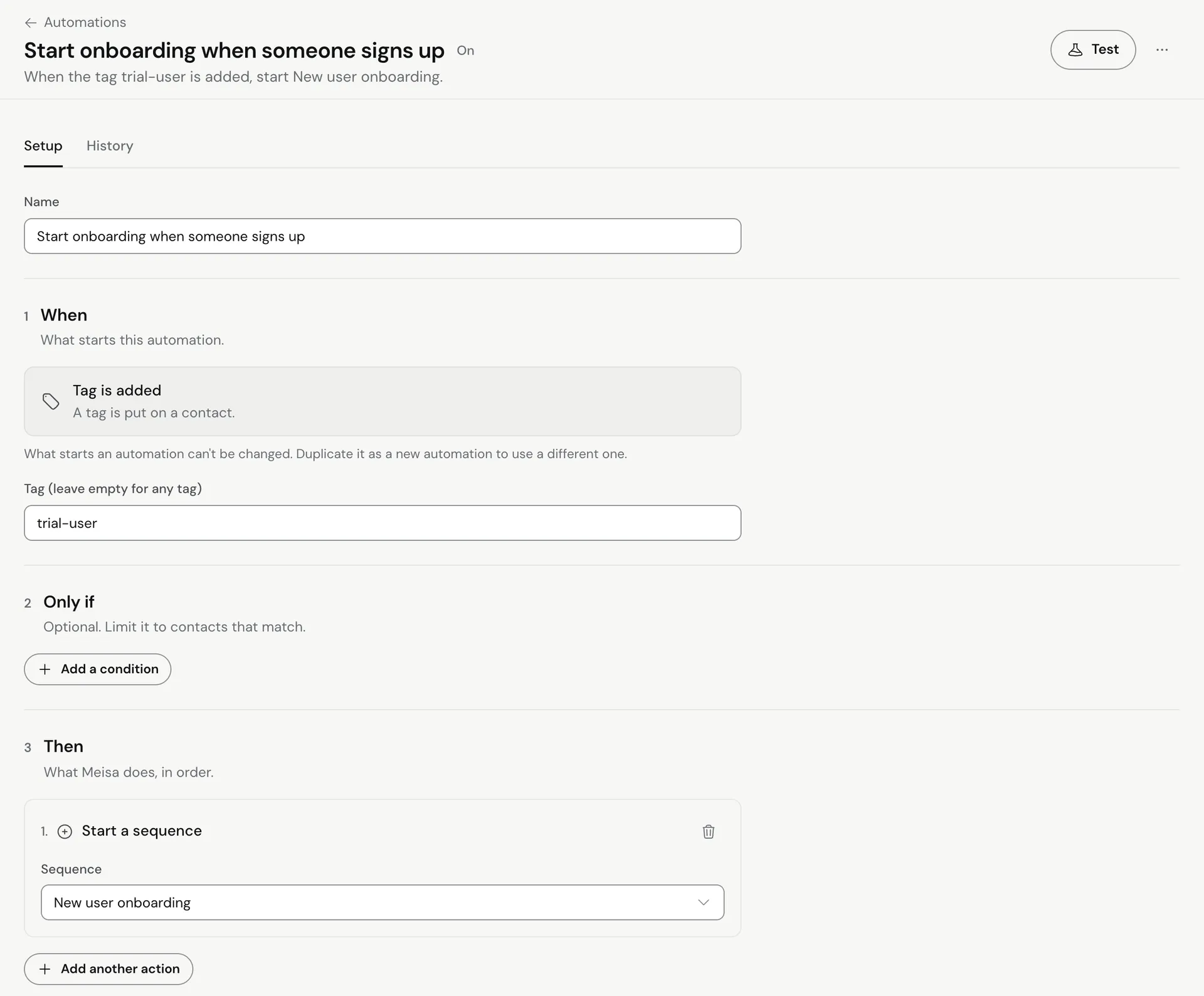
Step 1: When (what starts it)
Pick the event that starts the automation:
| Trigger | Fires when | Settings |
|---|---|---|
| Contact is created | A new contact is added. | Which contacts count: untick sources to leave them out. Bulk sync and First sync are off by default so a migration or first import doesn’t send everyone a welcome. |
| Field changes | A custom field or other detail is updated, usually by your app’s upsert call. | Which field, plus optional Changed from and Changed to. |
| Tag is added / Tag is removed | A tag is put on or taken off a contact. | Tag (leave empty for any tag). |
| Your app sends an event | Your app calls the events API with that event name. | Event name: the exact name your app sends, like trial_started. |
| Contact goes quiet | A contact has had no opens or clicks for a number of days. | Days with no opens or clicks. Meisa checks once a day and runs the rule once per contact. |
| Joins a sequence | A contact is enrolled in a sequence through the API. | Which sequence, or any sequence. |
Note: the picker also lists Email is sent, Email is opened, Link is clicked, Email bounces and Finishes a sequence. These do not start automations yet. To react to the end of a sequence today, add an Action step at the end of the sequence (for example Add a tag) and trigger on Tag is added.
Step 2: Only if (optional conditions)
- Under Only if, add one or more conditions on contact fields, for example
planisfree. - Choose Match all of these or Match any of these.
Leave it empty to run for every contact that hits the trigger.
Step 3: Then (what Meisa does)
Add one or more actions. They run in order.
- Add a tag / Remove a tag: enter the Tag name.
- Set a field: enter the Field name and New value.
- Start a sequence / Stop a sequence: pick the Sequence. The sequence must be on to start it.
- Call a webhook: enter the Web address and Method (POST, PUT or GET). Meisa sends the contact’s details to your URL.
- Notify your team: emails the address in Send to with an optional Message.
Step 4: Test and turn on
- Click Turn on to make it live, or Save as draft to finish later.
- On a saved automation, click Test to do a dry run against a contact you pick. Nothing is sent and no contact is changed. It shows what the automation would do.
- Open the History tab to see each run, the contact, the result and when it happened (the latest 100 runs).
To stop it, click Pause. Use Duplicate as new to copy a rule.
Examples
- When Contact is created, Then Start a sequence “Trial onboarding”.
- When Field changes, field
plan, changed topro, Then Remove a tagfree-plan, Add a tagpaying-customer, Start a sequence “Welcome to Pro”. - When Your app sends an event
hit_usage_limit, Then Start a sequence “Upgrade nudge”. - When Contact goes quiet for 30 days, Then Start a sequence “Win-back”.
Your app only needs to keep Meisa up to date (upsert contacts and send events). The rules live in Meisa. See Send events and contacts from your app.
Troubleshooting
- The automation never runs: check it is on (status On in the list), and that the trigger is one of the working ones above.
- A new contact didn’t trigger it: under Which contacts count, check the contact’s source is ticked. Imports and first syncs are left out by default.
- Field changes didn’t fire: the field name must match the
custom_fieldskey your app sends, and the value must actually change. - Start a sequence did nothing: the sequence must be on, and the person can’t already be in it.
Related articles
Did this answer your question?
Thanks for letting us know.Thanks, we will improve this article. Want a hand right now?
Still need help?
Chat with us and get an answer in a few minutes.