
Add a product (workspace) for each app you send from
Open the product menu at the top of the sidebar, click Add a product, give it a name and click Create product. Each product keeps its own contacts and sending.
On this page
To add a product, open the product menu at the top of the sidebar, click Add a product, enter a name and click Create product. A product is one app or brand you send email for, and each one has its own contacts, emails and sending setup.
When to add a product
Add a separate product for each app, brand or list you send from. For example, if you run two SaaS apps, make one product for each so their contacts, templates, sequences and senders never mix. Your first product is created during sign-up.
Add a product
- In the sidebar, click the product name at the top (it shows your current product and the word Product).
- Click Add a product.
- Enter the Product name. It is shown in the sidebar and in your emails.
- Optionally add a Description (optional): what this product does, in a sentence.
- Optionally open Brand (optional) to upload a Logo and set a Colour (a six digit hex code like #2563EB).
- Click Create product.
Meisa switches to the new product and opens your dashboard. You choose the From address next, in Email setup.
Set up sending for the new product
Each product has its own sending setup, so repeat these for every new product:
- Connect your email provider. See Connect Amazon SES to Meisa.
- Verify the domain you send from. See Verify your sending domain (DKIM, SPF and DMARC).
- Add a sender. See Add a sender (From name and address).
The dashboard’s Get ready to send checklist walks you through these steps for the product you are in.
Switch between products
- Click the product name at the top of the sidebar.
- Under Your products, click the one you want. A check mark shows the current product.
Everything you see in Meisa (contacts, broadcasts, sequences, settings under This product) belongs to the product you have selected. If you have more than one product, the same menu has Sending health, all products to compare them.
Edit a product later
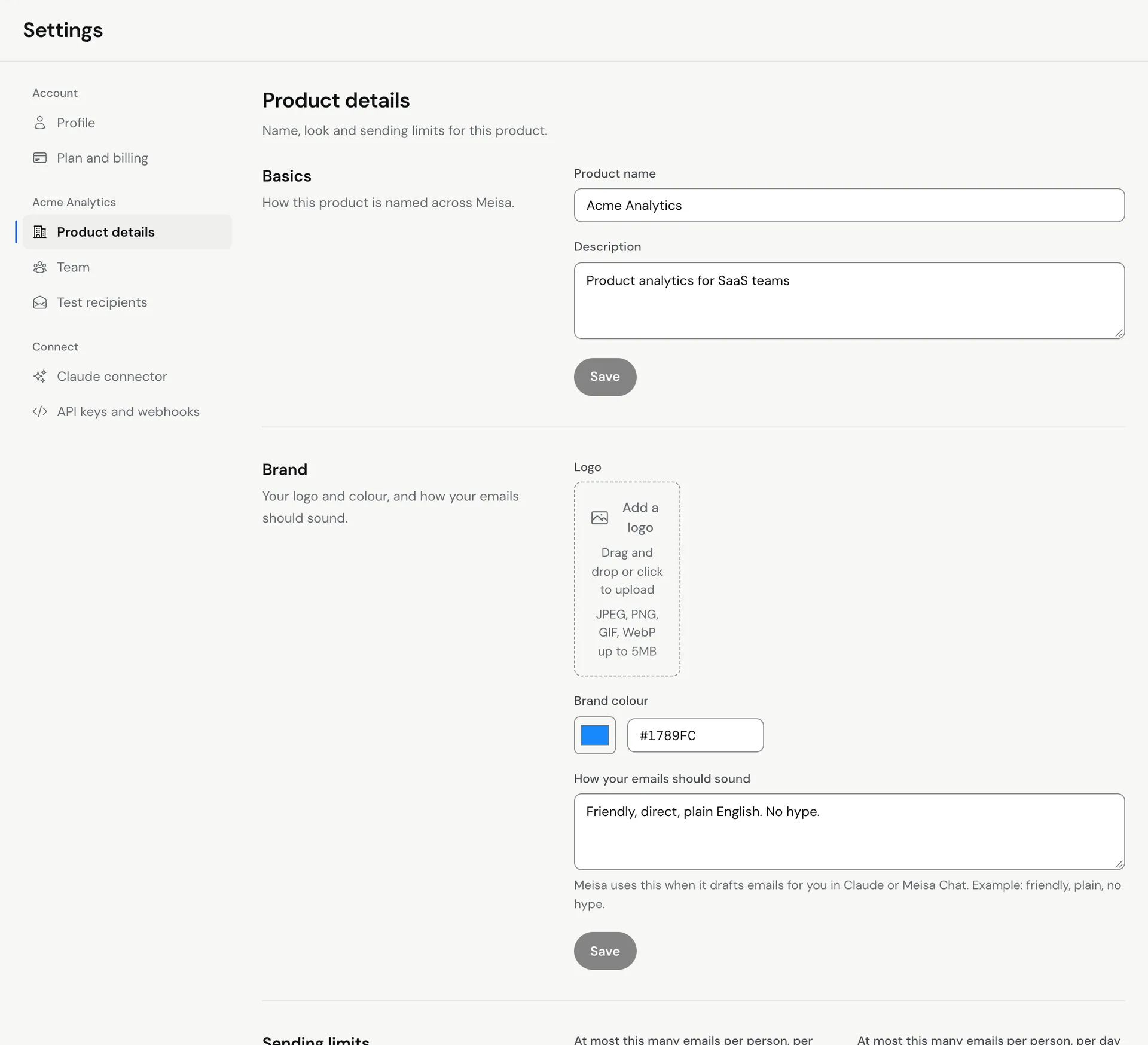
Go to Settings, then Product details. There you can change the Product name, description, logo, colour, how your emails should sound, the Default sender and the Sending limits for that product.
Good to know
- Your plan’s contact and sending allowance is shared across all the products you own. See meisa.io/pricing.
- Team access is per product. Inviting someone to one product does not give them access to your others. See Invite team members.
Related articles
Did this answer your question?
Thanks for letting us know.Thanks, we will improve this article. Want a hand right now?
Still need help?
Chat with us and get an answer in a few minutes.