
Invite team members
Go to Settings, then Team, click Invite someone, enter their email, pick Member or Admin and click Send invite. They join from the email.
On this page
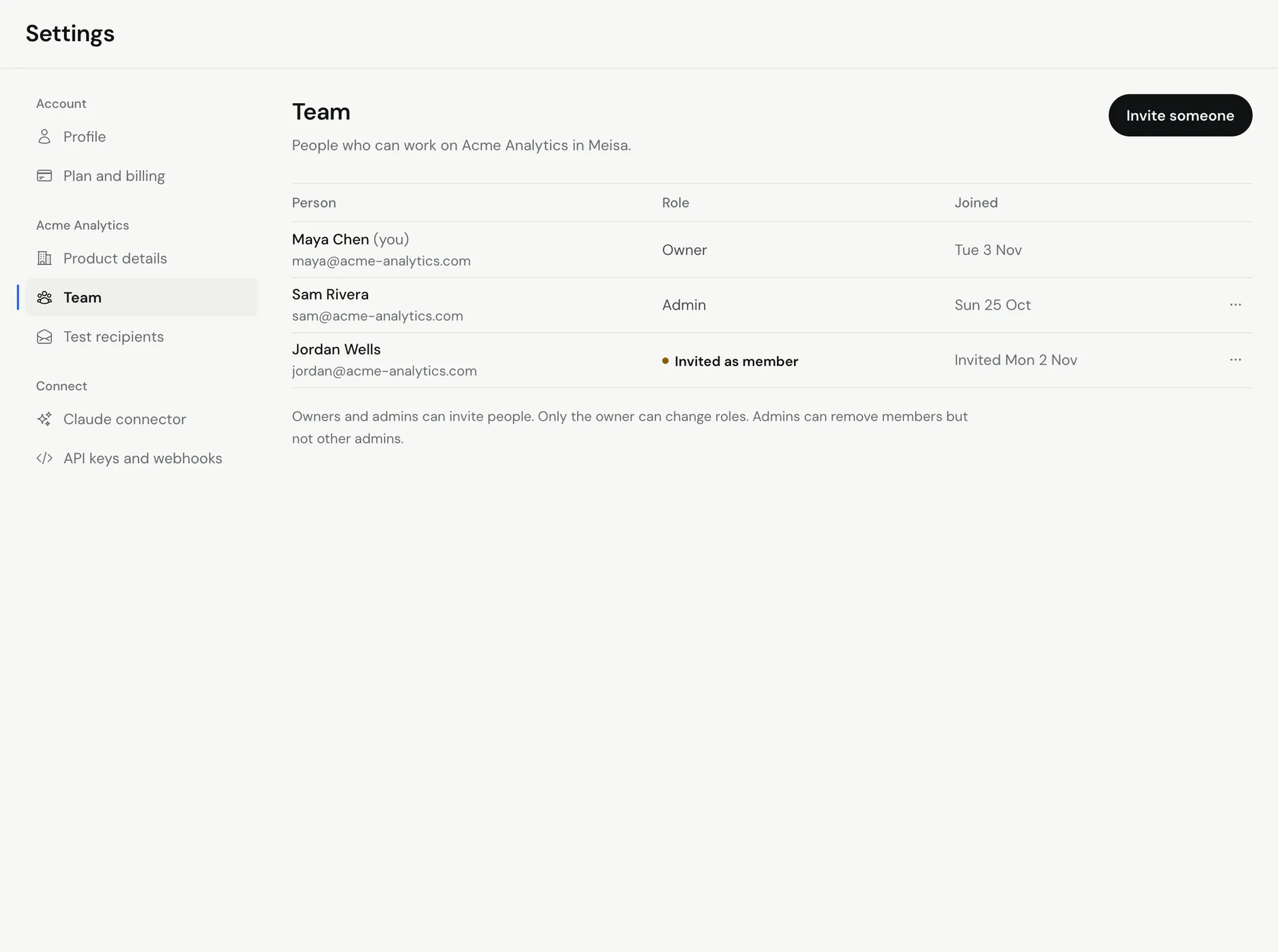
To invite someone, go to Settings, then Team, click Invite someone, enter their email, choose Member or Admin, and click Send invite. They get an email with a link to join the product.
Team access is per product. Make sure the product you want them in is selected at the top of the sidebar before you invite.
Send an invite
- Switch to the product you want to share, using the product menu at the top of the sidebar.
- Go to Settings, then Team (under the product’s name).
- Click Invite someone. Only owners and admins see this button.
- Enter their Email.
- Under Role, choose Member or Admin.
- Click Send invite.
You see Invite sent. Click Invite another to add more people, or Done. The person shows in the list as Invited as member or Invited as admin until they join.
Roles
| Role | What they can do |
|---|---|
| Owner | Everything, including changing roles. The person who created the product. |
| Admin | Write and send emails, manage contacts, invite people and remove members. Admins can’t remove other admins. |
| Member | Write and send emails, and manage contacts. |
Only the owner can change roles. To change one, open the row’s menu and click Make admin or Make member.
What your teammate does
- They open the email “You’ve been invited to join [product] on Meisa” and click the link to accept.
- They sign in with the invited email address, using Google or a 6-digit code sent to that address.
- They enter their name and click Go to my dashboard.
Teammates work inside your product under your plan. A teammate who is new to Meisa and joins a product on a paid plan or trial does not need to start a trial of their own.
Cancel an invite or remove someone
- Go to Settings, then Team.
- Open the row’s menu and click Cancel invite (for a pending invite) or Remove.
- Confirm. A removed person loses access right away. A canceled invite link stops working, and you can invite them again later.
The owner can remove anyone except themselves. Admins can remove members only.
Troubleshooting
- They did not get the email. Check their spam folder, or cancel the invite and send it again.
- “This invite link doesn’t work anymore”. The invite may have expired, been canceled or already been used. Send a new invite.
- “User is already a member of this product”. They are already on the team for this product.
- They see the trial screen after joining. Contact [email protected] with the product name and their email.
Related articles
Did this answer your question?
Thanks for letting us know.Thanks, we will improve this article. Want a hand right now?
Still need help?
Chat with us and get an answer in a few minutes.