
Update your profile and sign-in email
On this page
Go to Settings, then Profile to change your name and photo, and click Save. Your email address is how you sign in, so it can’t be edited there: to change it, contact Meisa support at [email protected].
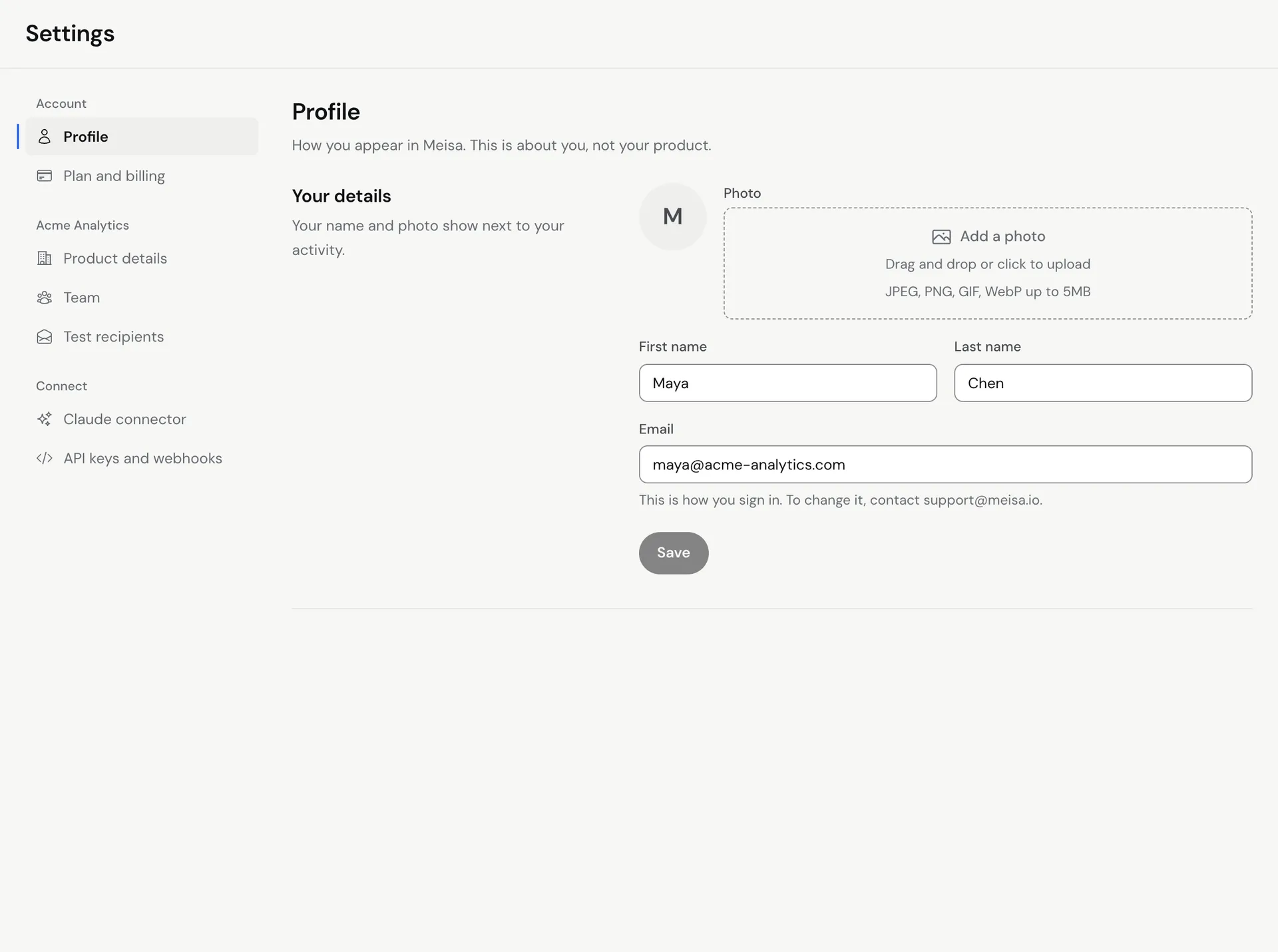
Change your name or photo
- Click Settings in the sidebar, then Profile (under Account).
- Under Your details, edit your First name and Last name. The first name is required.
- To add a photo, click Add a photo and pick an image. To change it, click your current photo.
- Click Save. You see Saved when it worked.
Your name and photo show next to your activity and to your team. Your profile is about you, not your product. To change your product’s name, logo or default sender, go to Settings, then Product details.
Change the email you sign in with
The Email field is read-only. To move your account to a new email address:
- Email [email protected] from your current account address.
- Say which new address you want to use.
Support will confirm once it is changed. After that, sign in with the new address.
Your sign-in
Meisa does not use passwords. You sign in with Continue with Google or with a 6-digit code sent to your email. If you lose access to your email inbox, you can’t sign in, so contact [email protected].
Change the name your emails come from
The name people see on your emails is set by your sender, not your profile. See Add a sender (From name and address).
Related articles
Did this answer your question?
Thanks for letting us know.Thanks, we will improve this article. Want a hand right now?
Still need help?
Chat with us and get an answer in a few minutes.