
Read a contact's profile and activity
Open any contact to see their details, tags, email preferences, sequences and every email and event, and to email, unsubscribe or delete them.
On this page
Every contact has a profile page with their details, tags, email preferences, sequences and a full history of emails and events. Open it from Contacts by clicking the person’s row, or choose View profile from the row’s menu.
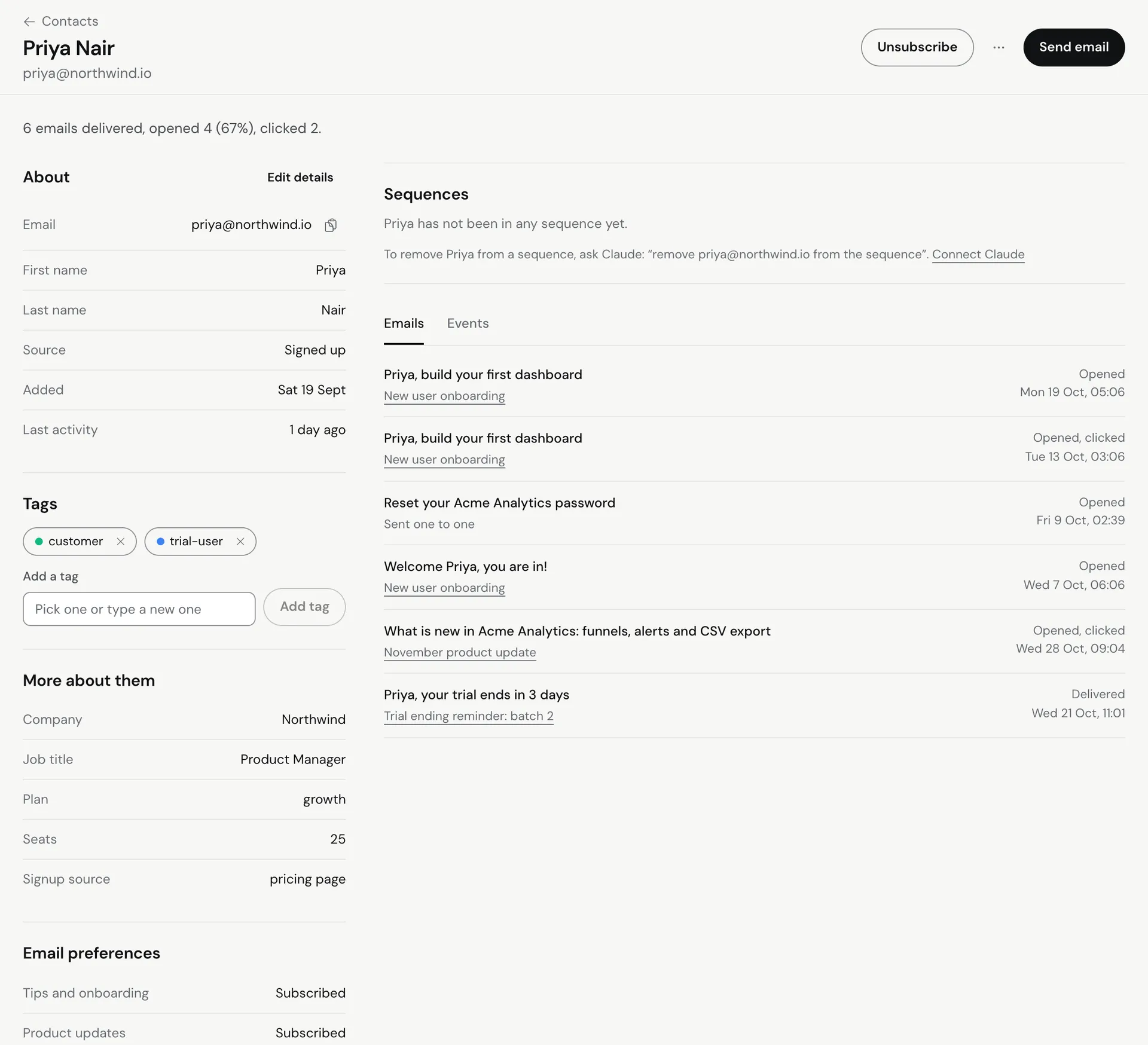
Read the profile
- Go to Contacts and click a contact.
- Read the summary line at the top, for example “12 emails delivered, opened 7 (58%), clicked 3.” It tells you at a glance how this person responds to your email.
- If Meisa no longer emails them, a line under the name says why, for example “This address bounced, so Meisa won’t email it.”
- Scroll through the sections below.
Sections on the page
- About: Email, First name, Last name, Your app’s ID (when you send one from your app), Source (how they were added), Added and Last activity. Click Edit details to change them.
- Tags: the tags on this person. Use Add a tag to add one, or remove a tag from here.
- More about them: the custom fields stored for this person, such as plan or company. See Use custom fields and tags.
- Email preferences: each email type (for example Product updates or Offers and promotions) with Subscribed or Unsubscribed. People change these themselves from the preference page linked in every email.
- Sequences: every sequence they are in, with “In progress since” or “Finished”.
- Activity: two tabs.
- Emails: every email sent to them, whether it came from a broadcast, a sequence or was sent one to one, with its state: Queued, Sent, Delivered, Opened, “Opened N times, clicked”, Bounced, Marked as spam or Failed. Click an email for its details.
- Events: things that happened, such as tags added, sequence steps, unsubscribes and events your app sent to Meisa.
Actions on the profile
- Send email: write a one-to-one email to this person. It is unavailable when they are unsubscribed, bounced or marked you as spam.
- Unsubscribe: stop broadcasts and sequence emails to them.
- Re-subscribe: shown only for unsubscribed contacts. You must tick that they asked to be re-subscribed.
- Delete contact: deletes the person and their history. The address could be imported and emailed again later, so to stop emailing someone, unsubscribe them instead.
Troubleshooting
- Open counts look low: Apple Mail privacy and security scanners make open data noisy. See Why do my open rates look lower than in other tools?.
- Send email is greyed out: hover the button to see why. Usually the person is unsubscribed or their address bounced. See Unsubscribes and suppressed addresses.
- An event from your app is missing: check that your app sends events for this email address. See Send events and contacts from your app.
Related articles
Did this answer your question?
Thanks for letting us know.Thanks, we will improve this article. Want a hand right now?
Still need help?
Chat with us and get an answer in a few minutes.