
Use SendGrid, Postmark, Resend, Mailgun or SMTP instead of SES
In Email setup click Connect a provider, choose SendGrid, Postmark, Resend, Mailgun, Brevo, SparkPost, Mailjet or Custom SMTP, paste its API key and click Add provider.
On this page
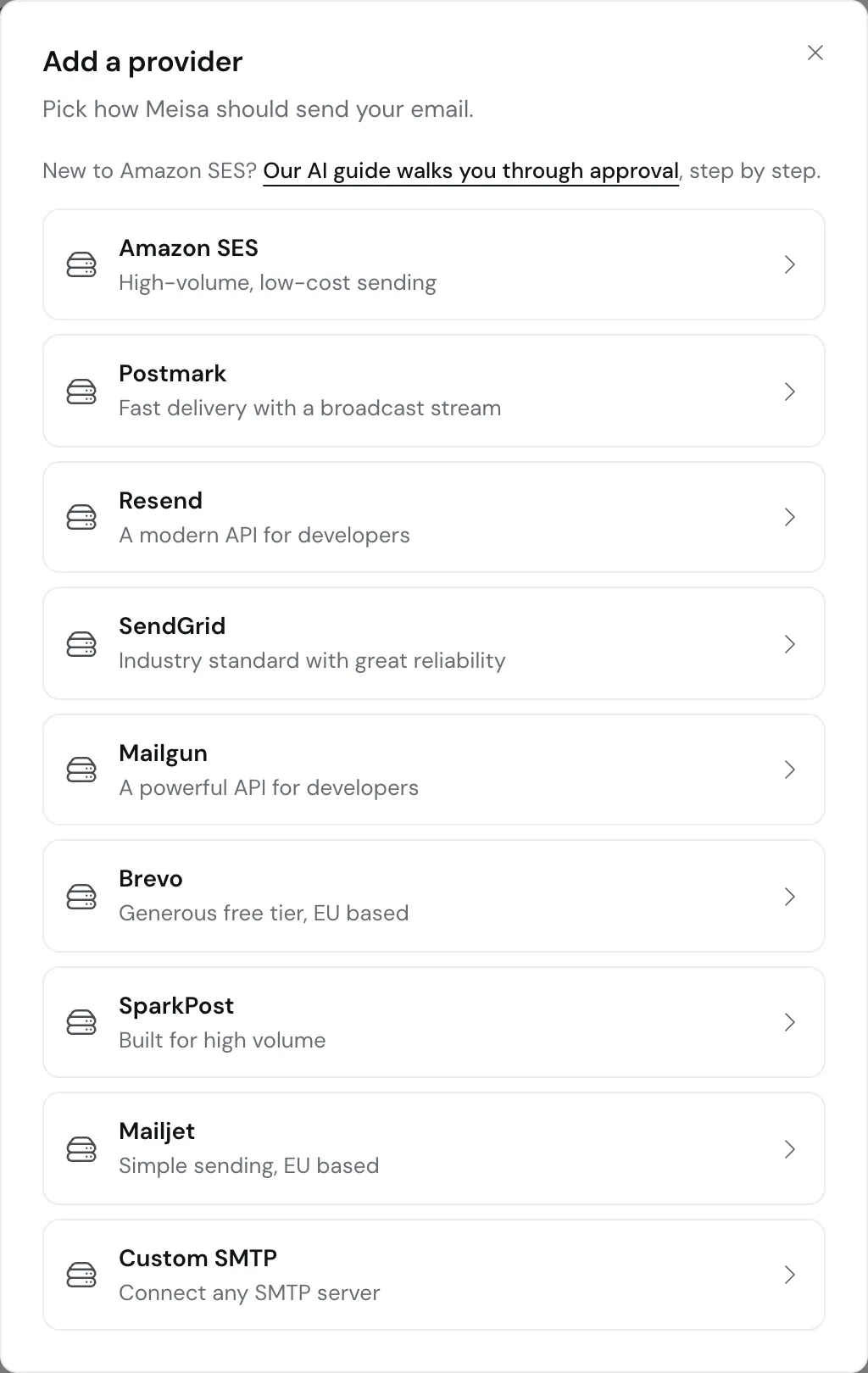
Meisa works with the email provider you already use. Open Email setup, click Connect a provider, pick SendGrid, Postmark, Resend, Mailgun, Brevo, SparkPost, Mailjet or Custom SMTP, paste the API key (or SMTP login) and click Add provider. You pay the provider directly, at their price.
Connect a provider
- Click Email setup in the sidebar.
- Click Connect a provider (or Add a provider if you already have one).
- Choose your provider from the list.
- Name (optional): a name you will recognise.
- Fill in the fields for your provider (see below).
- Click Add provider. Meisa checks the key right away. If the provider rejects it, you see “… did not accept these details. Check them and save again.”
What each provider needs
| Provider | Fields in Meisa | Where to get them |
|---|---|---|
| SendGrid | API key (starts with SG.), Region (Global or EU), Dedicated IP pool (optional) |
SendGrid, Settings, API Keys. Give it Mail Send, plus Domain Authentication if you verify your domain in Meisa, plus webhook settings access for delivery tracking. |
| Mailgun | API key, Sending domain (for example mg.yourdomain.com), Region (US or EU) |
Mailgun, Account Settings, API Security. Use your private API key. The region must match where the domain was added in Mailgun. |
| Postmark | Server API token, Message stream (optional) | Your Postmark server, API Tokens tab. Use a Broadcast stream for newsletters and marketing: Postmark does not allow them on its transactional stream. |
| Resend | API key (starts with re_) |
Resend, API Keys. Sending access is enough. |
| Brevo | API key (starts with xkeysib-) |
Brevo, SMTP and API, API Keys. |
| SparkPost | API key, Region (US or EU) | SparkPost API keys. The key needs the Transmissions permission. |
| Mailjet | API key and Secret key | Mailjet account API key settings. |
| Custom SMTP | SMTP host, Port (usually 587), Username, Password, Use TLS encryption | Your SMTP service’s connection settings. |
Verify your domain
Domain checks inside Meisa depend on the provider:
- SendGrid and Mailgun: add your domain under Verify your domain in Meisa, exactly as for SES. Meisa gets the DNS records from your provider and checks them for you. See Verify your sending domain.
- Postmark, Resend, Brevo, SparkPost, Mailjet and Custom SMTP: verify your domain in the provider’s own dashboard first, using the DKIM and SPF records they give you. Then add the domain and a sender in Meisa. If your sender stays Not verified, email [email protected] with your domain and we will sort it out.
Turn on delivery tracking
So bounces and spam complaints come back to Meisa:
- Finish the setup steps, then in Email setup click the More actions menu (three dots) on the provider.
- Click Set up delivery tracking.
- SendGrid: confirm with Set up tracking. Meisa adds a signed event webhook in your SendGrid account.
- Mailgun: click Set up tracking. Meisa creates the delivery, bounce and complaint webhooks and fetches your webhook signing key. If that fetch fails, paste the key into Webhook signing key (optional). Find it in Mailgun under Account Settings, API Security, HTTP webhook signing key.
Meisa tracks opens and clicks itself for every provider, so your provider’s own dashboard may show zero opens and clicks. That is expected.
Using more than one provider
You can connect several providers, for example SES for newsletters and Postmark for transactional email.
- The Default provider is used unless a sender says otherwise. Change it with Set as default in the provider’s More actions menu.
- Each sender has a Sends through setting that picks its provider.
- Disable stops sending through a provider without deleting it.
Troubleshooting
- SendGrid key works but tracking fails: the key lacks webhook settings access. Create a key with those permissions and update it with Edit.
- Mailgun sends fail: check Sending domain is the domain verified in Mailgun (not your main website domain) and that Region matches it.
- SMTP test fails: use port 587 with Use TLS encryption ticked. Port 465 (direct SSL) is not supported in the form, and port 25 is often blocked. Check the host, username and password with your SMTP service.
- Postmark rejects marketing emails: set Message stream to your Broadcast stream ID.
Related articles
Did this answer your question?
Thanks for letting us know.Thanks, we will improve this article. Want a hand right now?
Still need help?
Chat with us and get an answer in a few minutes.